Change the background of a photo on iPhone
Describe where you want to be, and AI Photo Editing replaces what’s around you with that scene while keeping the people in the photo.

Before
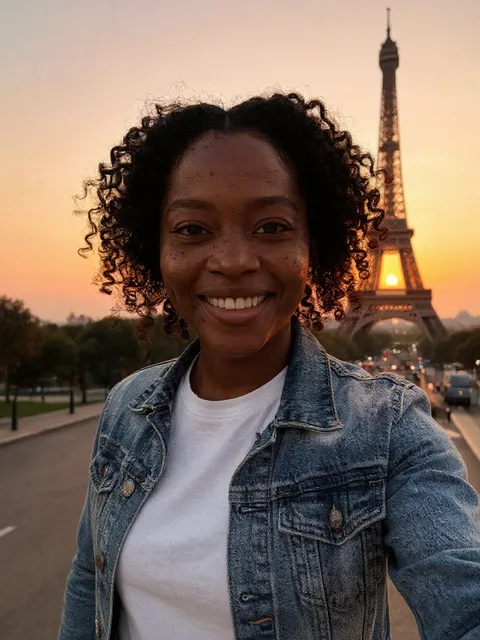
After
“Put me in Paris at sunset with the Eiffel Tower behind me”
Standard mode.

Before

After
“Put us in Santorini with the white houses and blue domes behind us”
Standard mode.
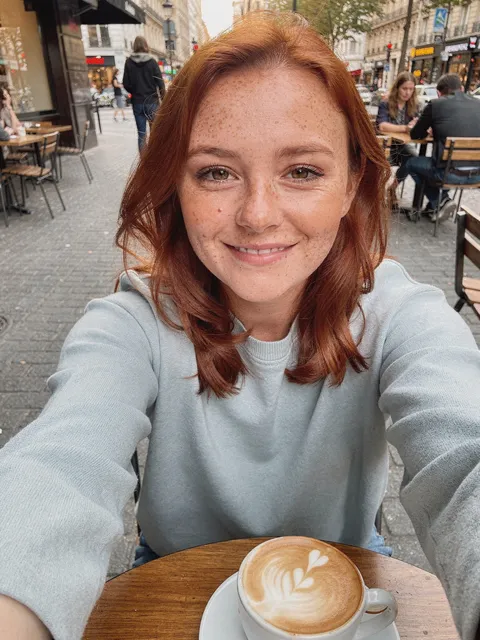
Before

After
“Put me on a sailboat off the Amalfi Coast in a white linen dress”
Genius mode. A new place and a new outfit in one edit.
How to do it
- Choose a photo where the people are clearly visible.
- Start the prompt with “Put me in…” or “Put us in…”, then name the place, and the time of day if it matters.
- Swipe to compare with the original. Not right? Change the prompt and try again.
Tips
- Name what makes the place recognizable: “the Eiffel Tower behind me”, “the white houses and blue domes”.
- For a bigger change, like a new place and a new outfit at once, pick Genius in AI Mode. It uses 2 credits instead of 1.
Try it in AI Photo Editing
Your first edits are free. Available for iPhone and iPad.
Download on the App Store