Restore and colorize old photos on iPhone
Take a photo of the print, or use a scan, and tell AI Photo Editing what to fix. The AI repairs the photo and can add color, usually in seconds. Your original stays as it is: the result is saved as a new photo.
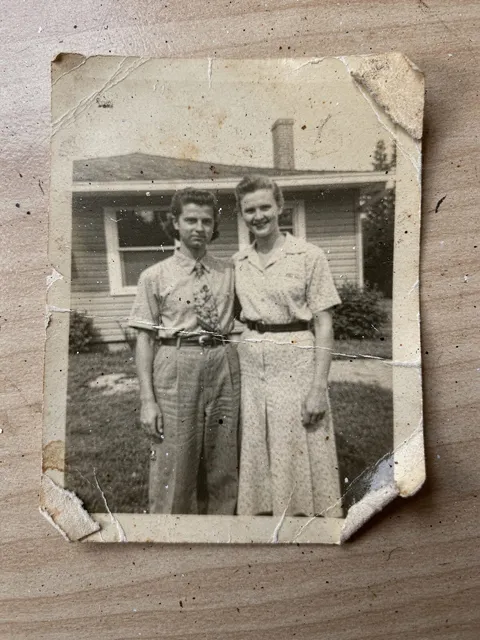
Before
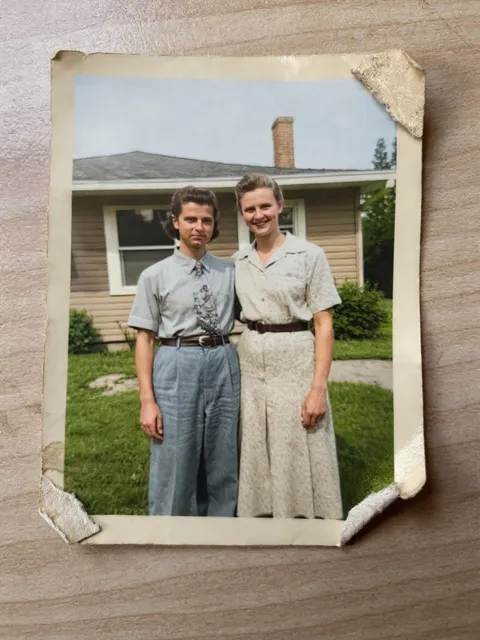
After
“Restore this photo: remove the scratches, creases and dust spots, and colorize it”
Genius mode.
How to do it
- Photograph the print flat, in even light and without glare. A scan works too.
- Open AI Photo Editing and choose the photo.
- Type what to fix. Name the damage, like scratches, creases or dust spots, and say whether you want color.
- Swipe to compare with the original. Not right? Change the prompt and try again, or pick Genius in AI Mode for heavy damage.
Tips
- AI can change small details, faces included. Compare closely and keep the version that still looks like the person.
- The AI works on everything in the picture, so crop out the table or frame around the print in the Photos app first.
Try it in AI Photo Editing
Your first edits are free. Available for iPhone and iPad.
Download on the App Store